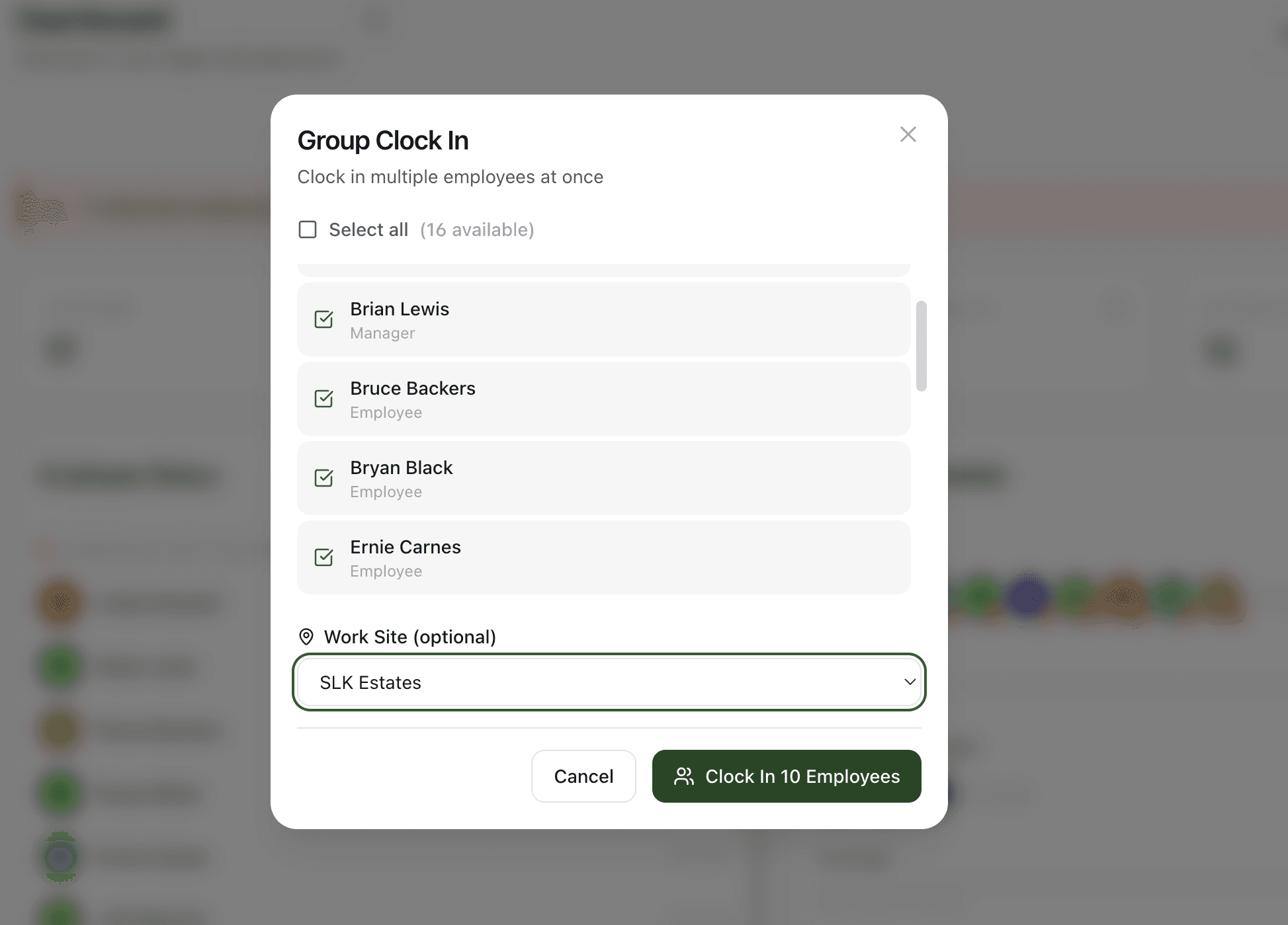
Pick your crew, hit Clock In — everyone available is pre-selected.
Why teams love Group Clock In
One supervisor punches in his or her whole crew
Foremen, shift leads, and managers open the Group Clock In modal, see every team member they're allowed to punch in, and clock the whole crew in with a single action. Everyone available is pre-selected so the supervisor only has to uncheck the no-shows.
Stamp the work site for everyone at once
Pick a work site from the dropdown and every employee's punch records that site's GPS coordinates. The supervisor's location permission is enough for the whole crew — individual phones don't each have to grant GPS access just to start the day.
Geofencing stays honest
When you've restricted clock-ins to assigned sites, the result screen tells the supervisor exactly who couldn't be punched in and where they were supposed to be. No silent failures, no hours quietly missing — issues surface before payroll closes.
Manager scope is enforced
Managers see only their direct reports in the picker. A shift lead running the morning crew can't accidentally clock in another team's employees. Owners and admins see all active employees, so they can clean up edge cases without permission gymnastics.
How it works
Group Clock In lets one supervisor punch in an entire crew with a single action — built for foremen, shift leads, and managers who already know who showed up and shouldn't have to wait for each phone to clock in separately. Open the modal from the admin or manager dashboard, deselect anyone absent (everyone available is pre-selected), optionally tag the punch with a work site or project, and hit Clock In. StampShift creates a fresh time entry for each selected employee, skips anyone already on the clock, and stamps every punch with the work site's GPS coordinates so location is captured even when individual phones haven't granted location access. Managers see only their direct reports, so scope stays enforced. When geofencing is set to assigned-only, the result screen surfaces wrong-site conflicts cleanly — no silent failures, no hours quietly missing at payroll.
Open Group Clock In from your dashboard
Admins and owners find the button at the top of the admin view. Managers find it under Quick Actions on the manager dashboard. The modal opens with your team already loaded.
Pick the crew, the site, and the project
Everyone available is pre-selected — uncheck the no-shows. Optionally choose a work site to stamp GPS coordinates on every punch, and tag the entries with a project for cost tracking (Business plan).
Hit Clock In
StampShift creates a fresh time entry for each selected employee. Anyone already on the clock is skipped automatically. The result screen confirms the count and surfaces any geofencing conflicts so you can resolve them on the spot.
Built for every workplace
See how teams across industries use Group Clock In.
Construction & Field Service
Foremen pull up to the jobsite and clock the whole crew in from the truck cab. One supervisor's GPS permission is enough — the work site stamps the location for everyone, even if a worker's phone has GPS turned off.
Landscaping
Crew leads sign every team member in to a new property at the start of the day. Switching sites mid-day is just another group punch, so hours follow the actual job, not the office.
Restaurants & Hospitality
Openers clock in the line cooks, prep cooks, and dishwashers at start-of-service so nobody loses time waiting on a manager to find their phone or unlock a kiosk.
Healthcare & Home Services
Charge nurses and shift supervisors clock in caregivers and aides at the start of their shifts so patient hours start counting from the actual handoff, not from whenever the team finishes signing in individually.
Frequently asked questions
Who can use Group Clock In?
Owners, admins, and managers. Owners and admins see every active employee in the company. Managers see only their direct reports. Regular employees don't have access — they clock themselves in from their own dashboard.
Can a manager clock in employees from another team?
No. The picker only shows the manager's direct reports, and the API enforces the same limit on the server side. A shift lead running the morning crew can't accidentally — or intentionally — clock in someone else's team.
What happens if some employees are already clocked in?
They're skipped automatically. The result screen shows how many were clocked in and how many were already on the clock, so the supervisor knows the picture matches reality without having to retry or troubleshoot.
Do all employees need to be physically at the work site?
For the bulk punch itself, no — the supervisor stamps the work site for the entire crew at once. If you've enabled GPS Geofencing in "any company site" mode, off-site clock-ins go through but get flagged for admin review. In "assigned-only" mode, employees assigned to a different site are blocked and called out on the result screen.
How does Group Clock In work with GPS Geofencing?
They're fully integrated. Picking a work site in the modal sets the location for every punch, so geofencing rules apply just like an individual clock-in. If geofencing is in assigned-only mode, the result screen surfaces who was blocked and where they were supposed to be. If it's in any-site mode, off-assigned punches are flagged for admin review but still create a time entry.
Is there a limit to how many employees I can clock in at once?
You can clock in up to 50 employees per group punch. If you have a larger crew, do a second group punch — there's no daily cap. Most supervisors are running crews of 5–25, so the 50-person cap rarely comes up in practice.
Related features
Explore more ways StampShift helps your team.
One-Tap Time Clock
Simple employee time clock app that works on any device. One-tap clock in/out with GPS verification. No app downloads required.
GPS Geofencing
Set up geofences around work sites and ensure employees can only clock in when on location. GPS tracking for construction, field service, and distributed teams.
Team Management
Four role levels — owner, admin, manager, and employee. Assign managers to oversee their direct reports. Work site assignments keep teams organized.
Ready to try Group Clock In?
The easiest way to track hours for your hourly team. Try it free for 14 days.
Start Your Free Trial14-day free trial • Cancel anytime